Survey
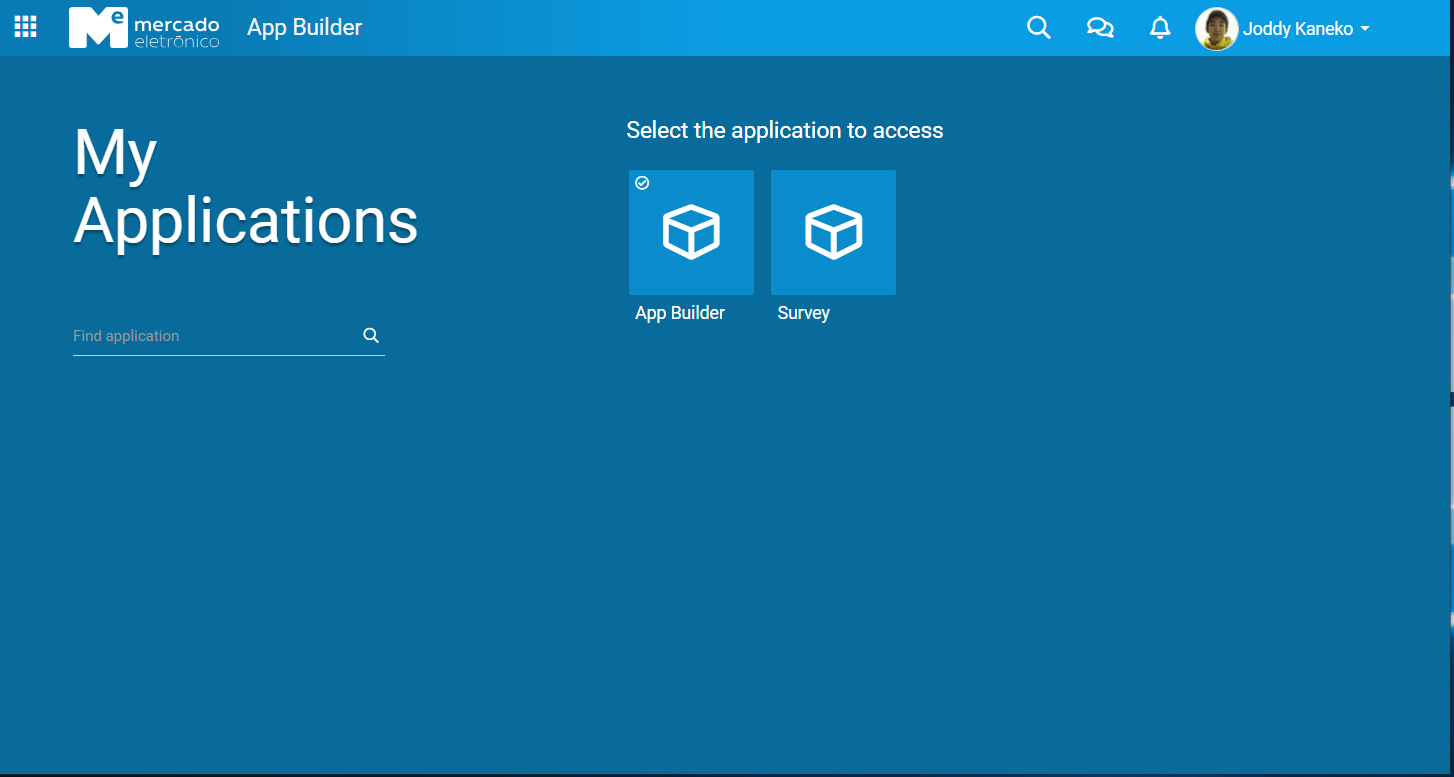
First, create a survey application to integrate with the appBuilder
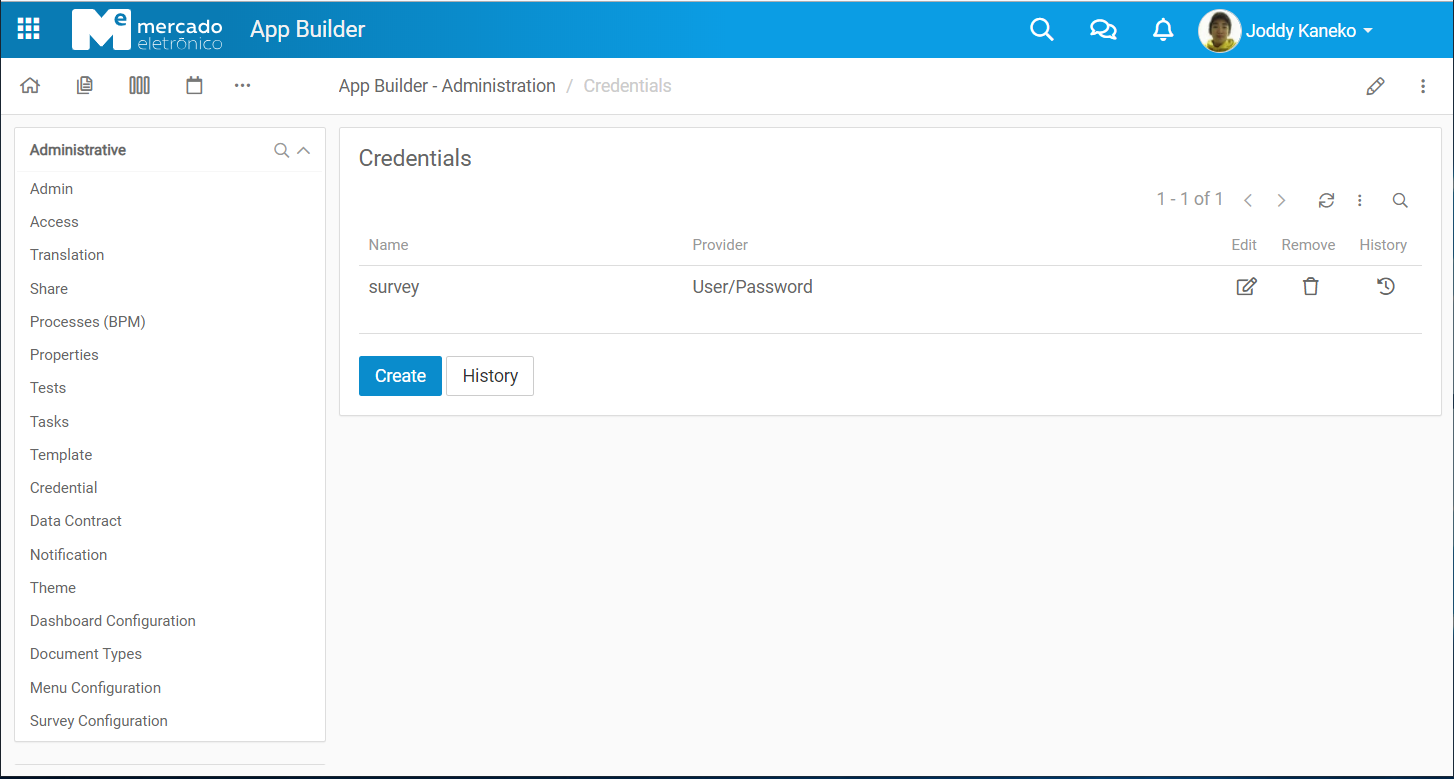
In AppBuilder create credential to integrate with Survey App.
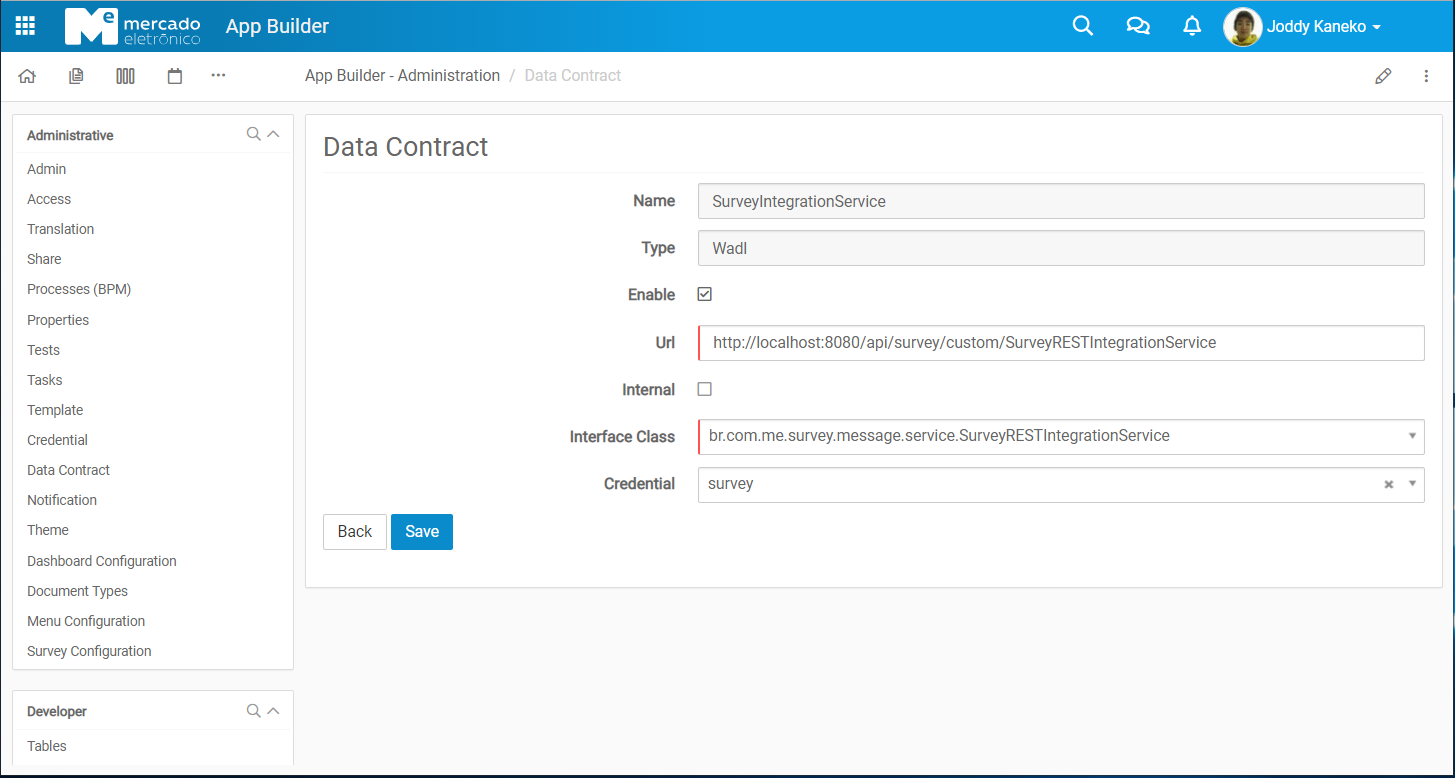
In AppBuilder configure the data contract to define URL endpoint, interface class and credential.
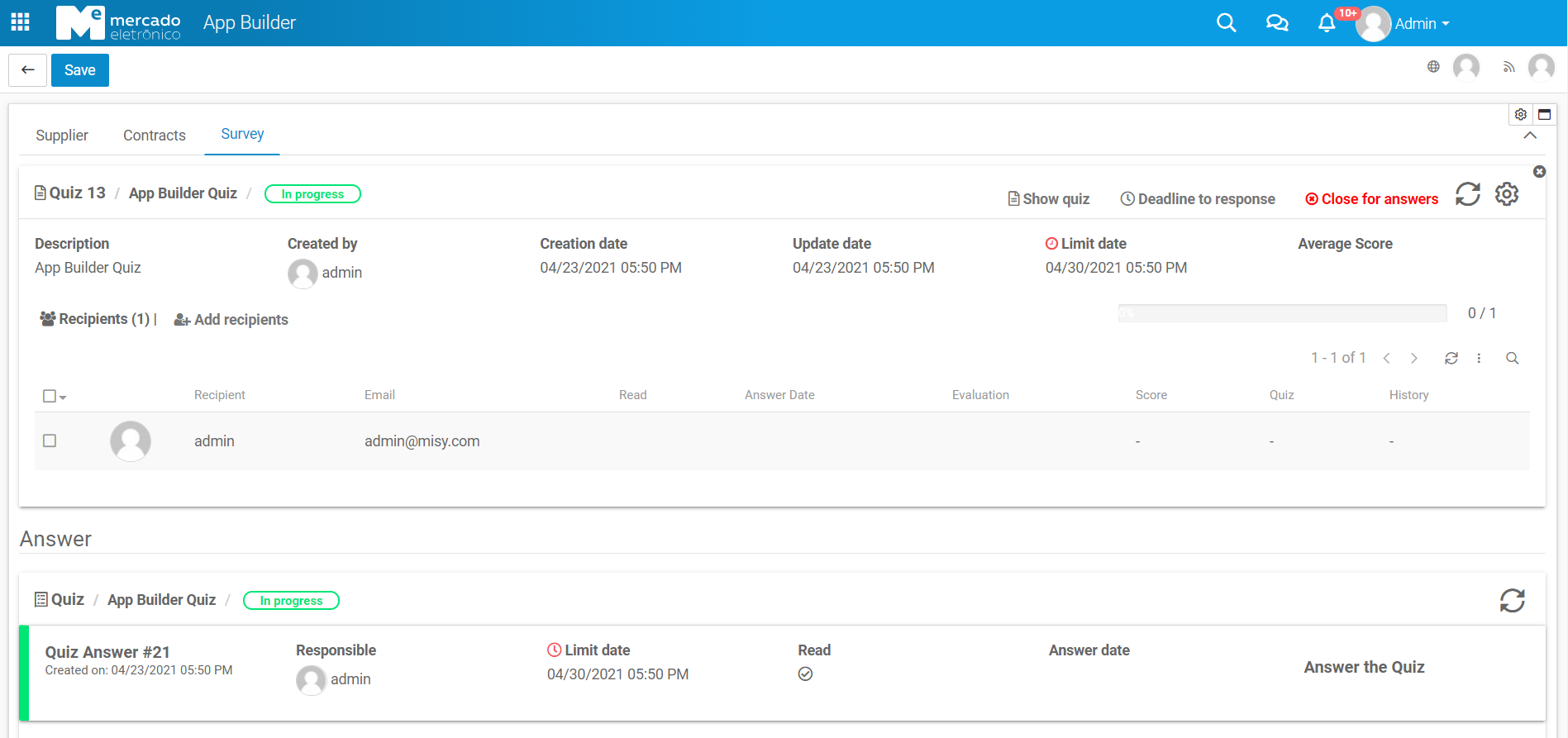
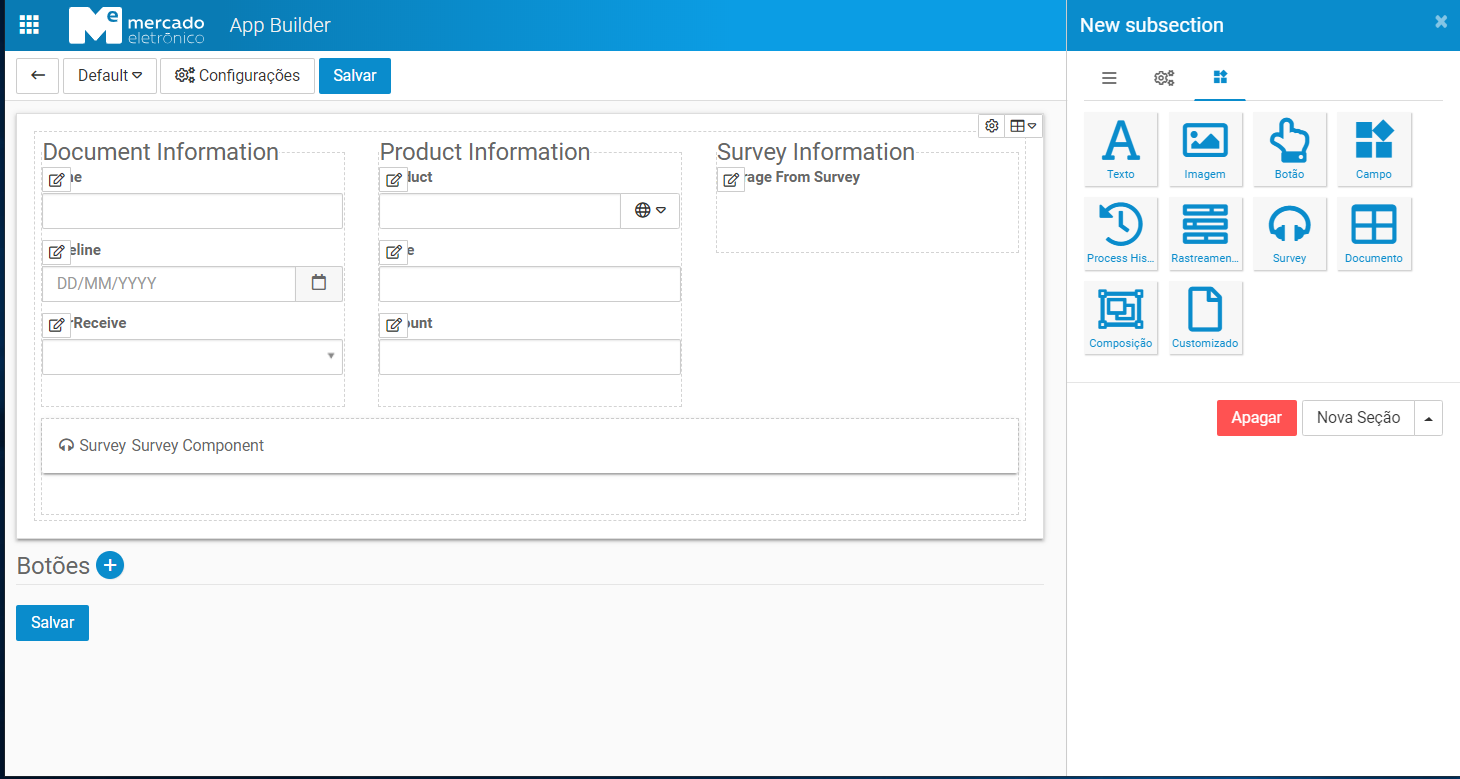
Use a screen to include the survey widget component of any document.
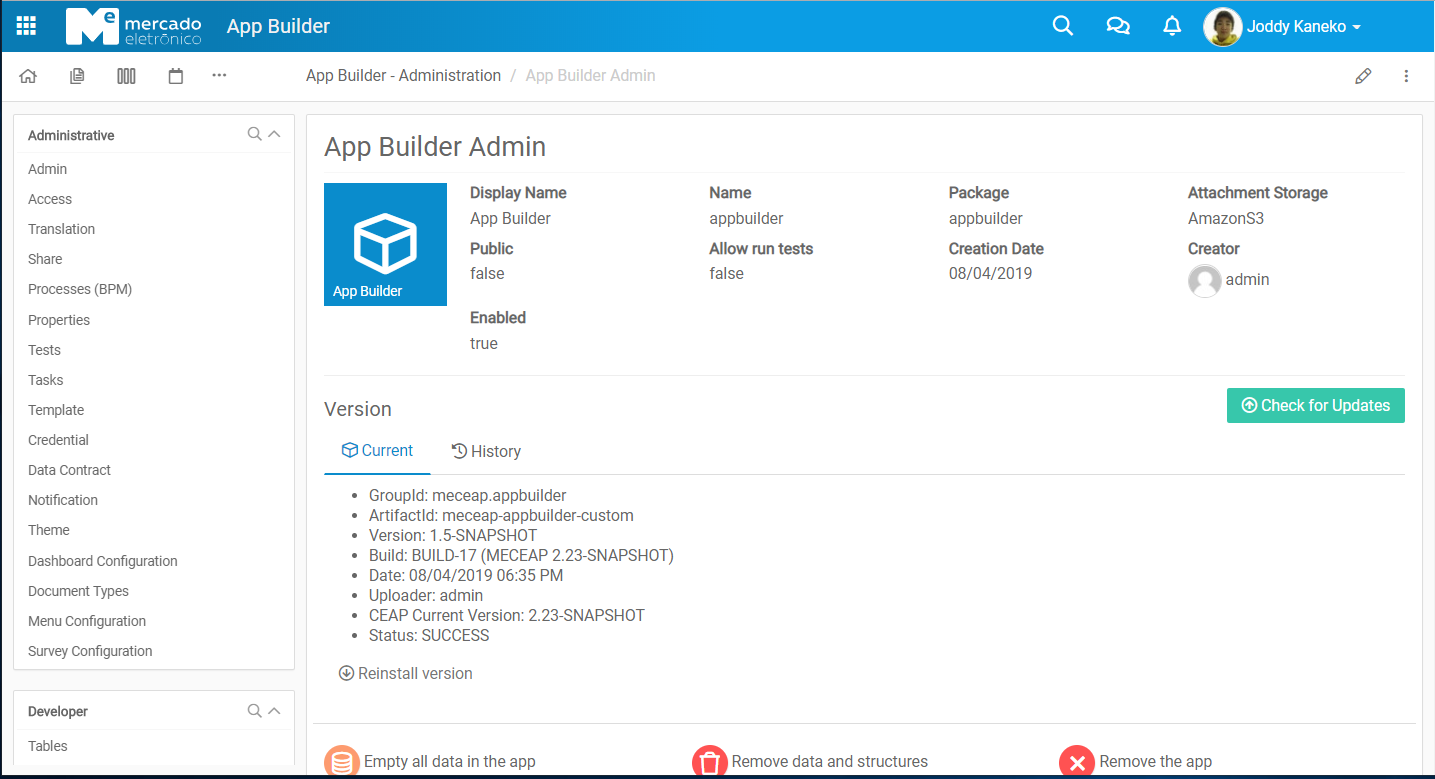
Survey Configuration
In AppBuilder there is a survey configuration in the administrative menu, to access the survey configuration menu, it is necessary to enable PERM_MANAGE_SURVEY.
In the Grid of the survey configuration displays the list of all documents included in the appBuilder.
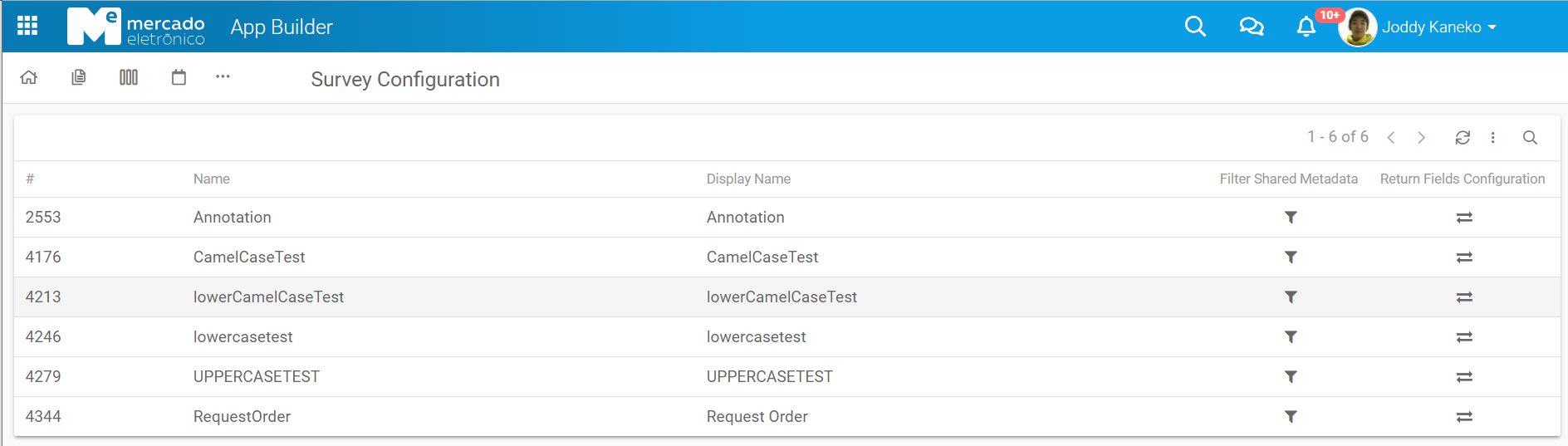
There are two configuration options:
-
Filter Shared Data.
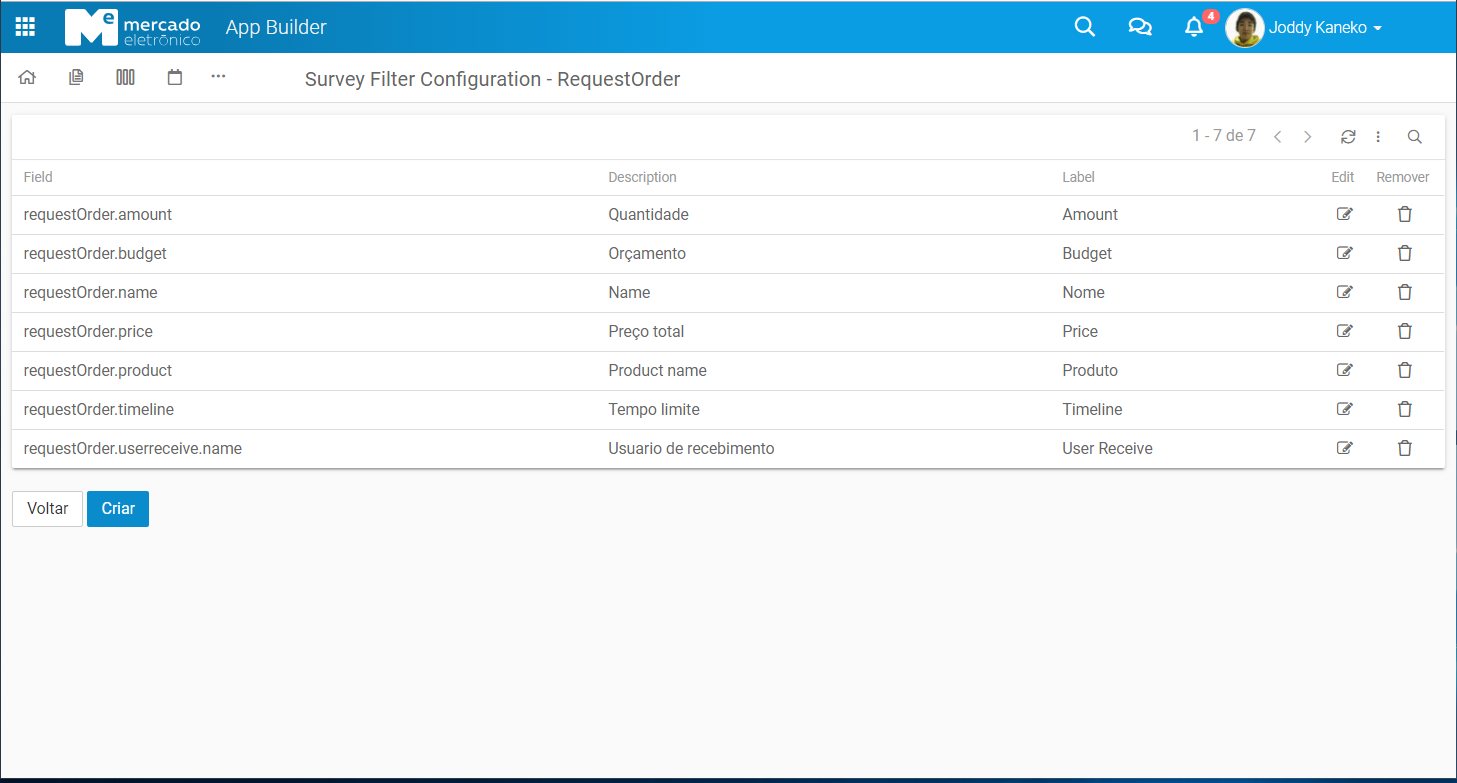
- Shows the fields that will be sent to the Survey through integration
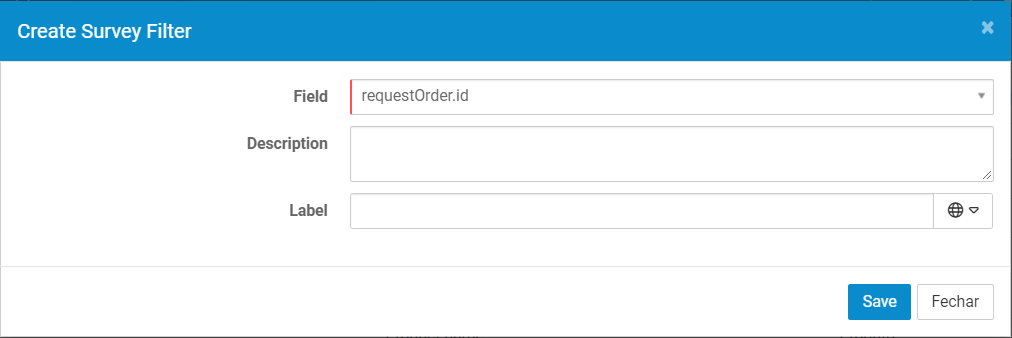
- To create the configuration that will be sent to the survey choose the document Field and fill Description and Label(Translatable)
-
Return Fields Configuration
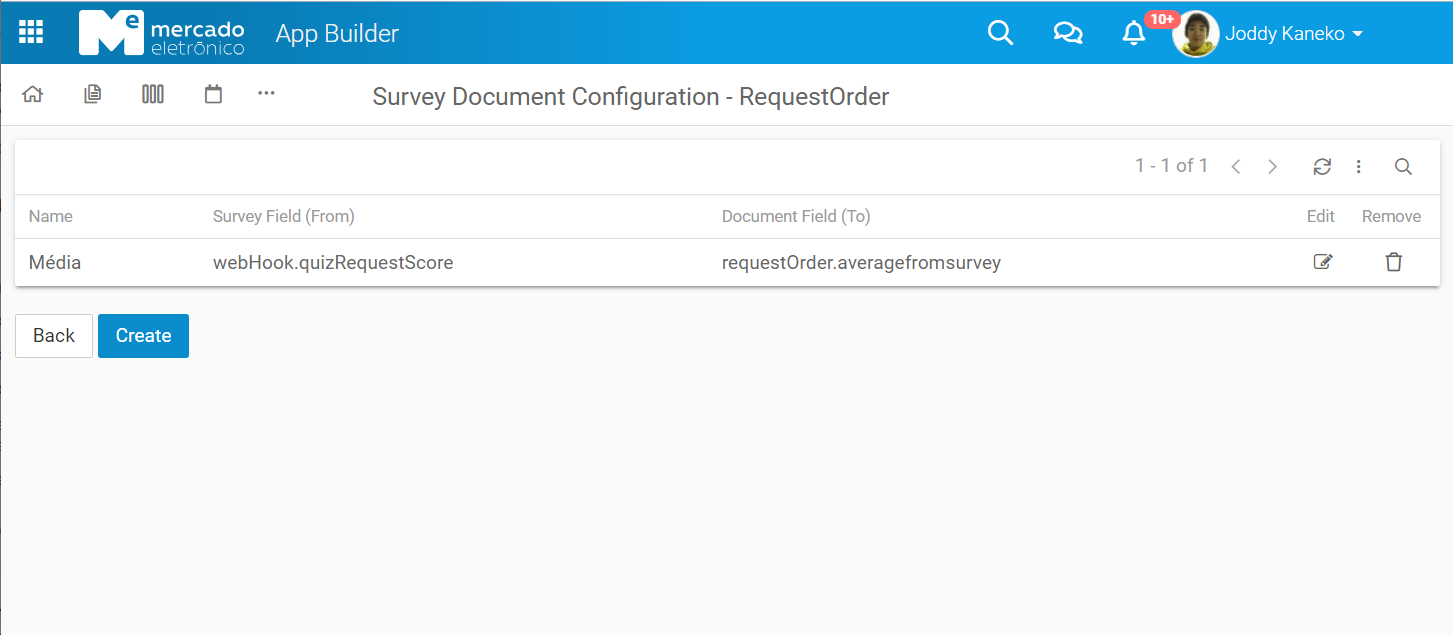
- Shows the fields that will be returned from the Survey to appBuilder.
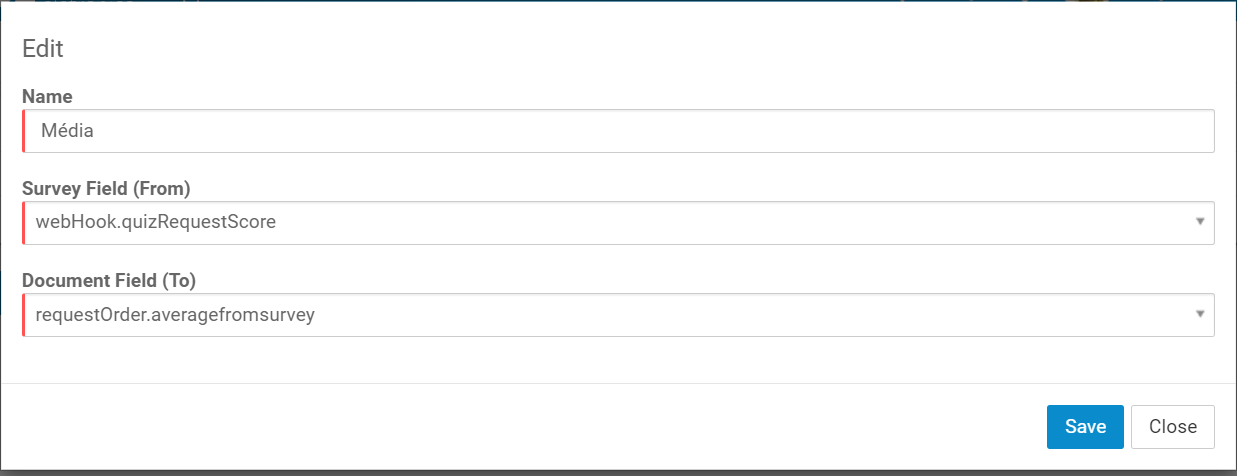
- To create the configuration that will be returned from the Survey to appBuilder, fill Name and choose the Survey Field(From) and Document Field(To).
Example:
AppBuilder Document:
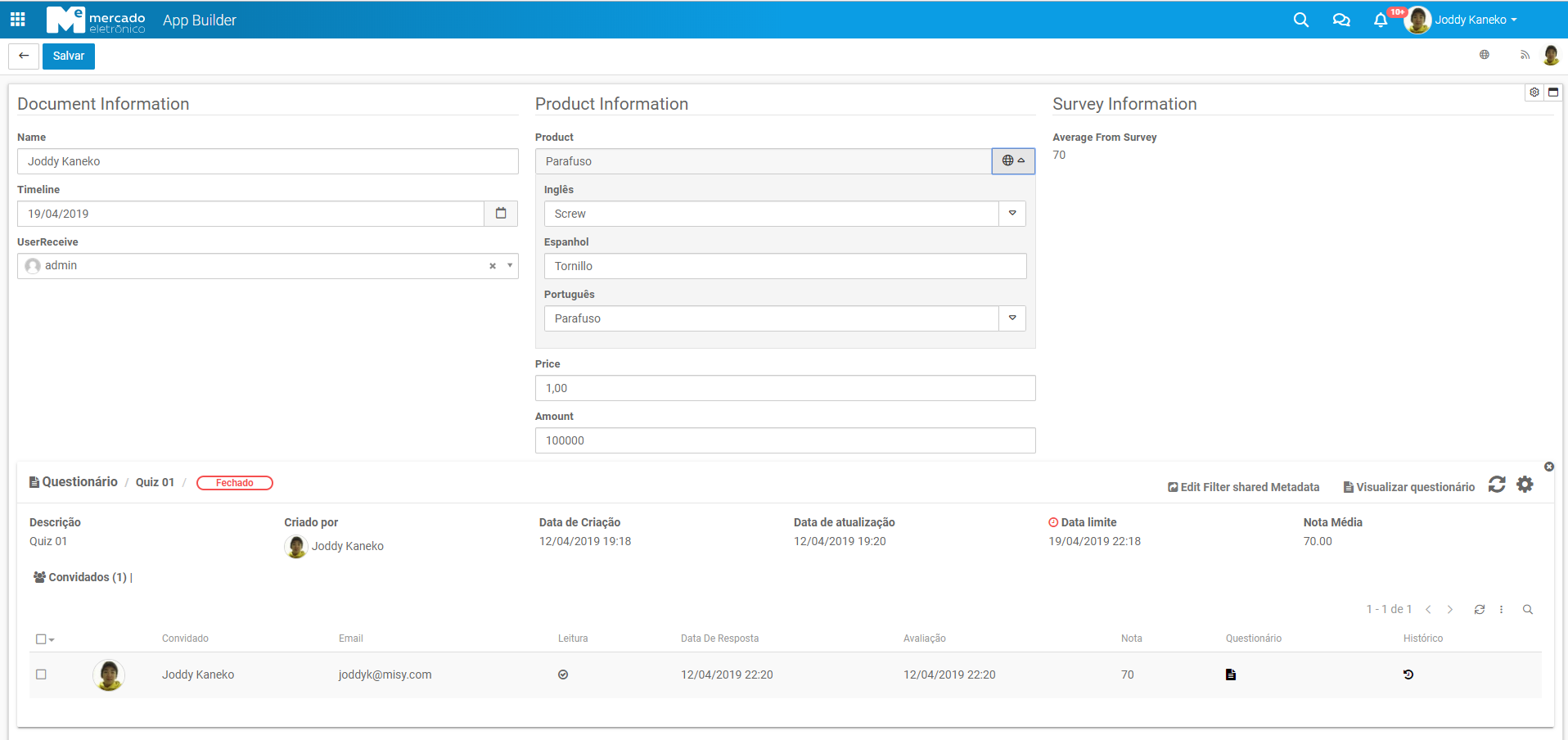
note: the Document field Average From Survey was filled by the configured return.
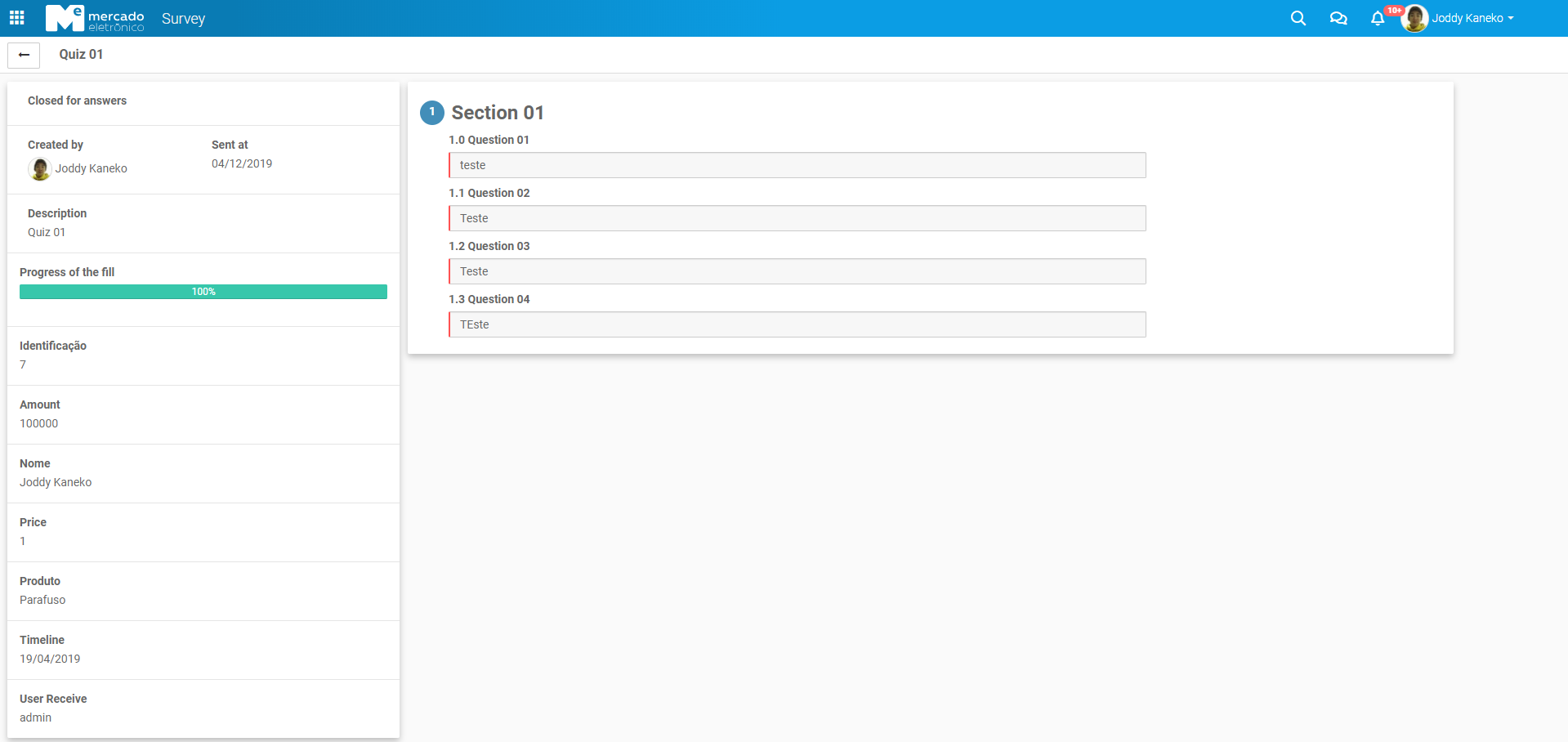
Survey Quiz Answer:
Survey Request Macro
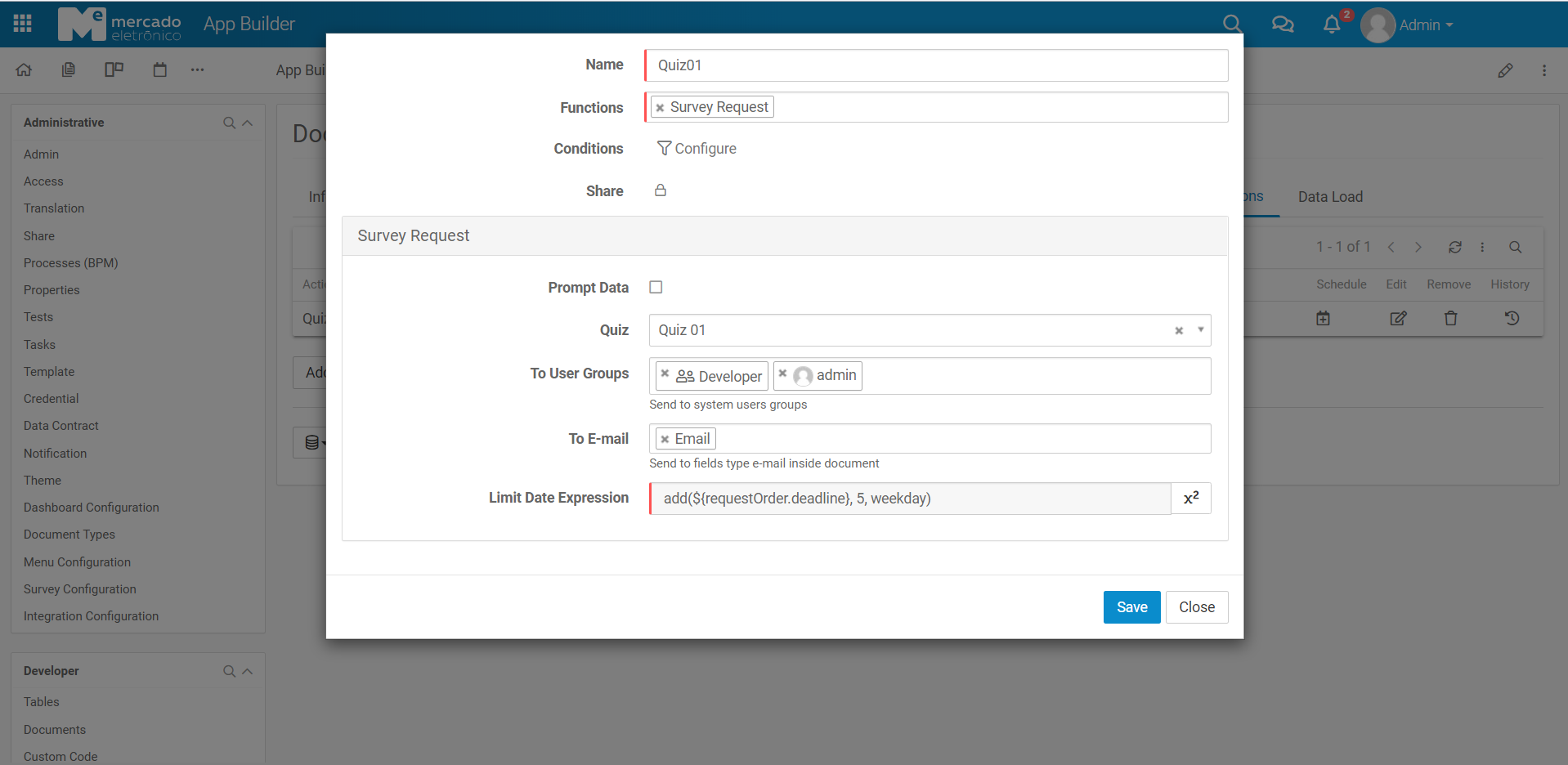
The Survey Request Macro is an action setting for automatically send a quiz.
To configure the macro you'll need to select the quiz, users who received and the deadline of quiz.
For this a system action was created:
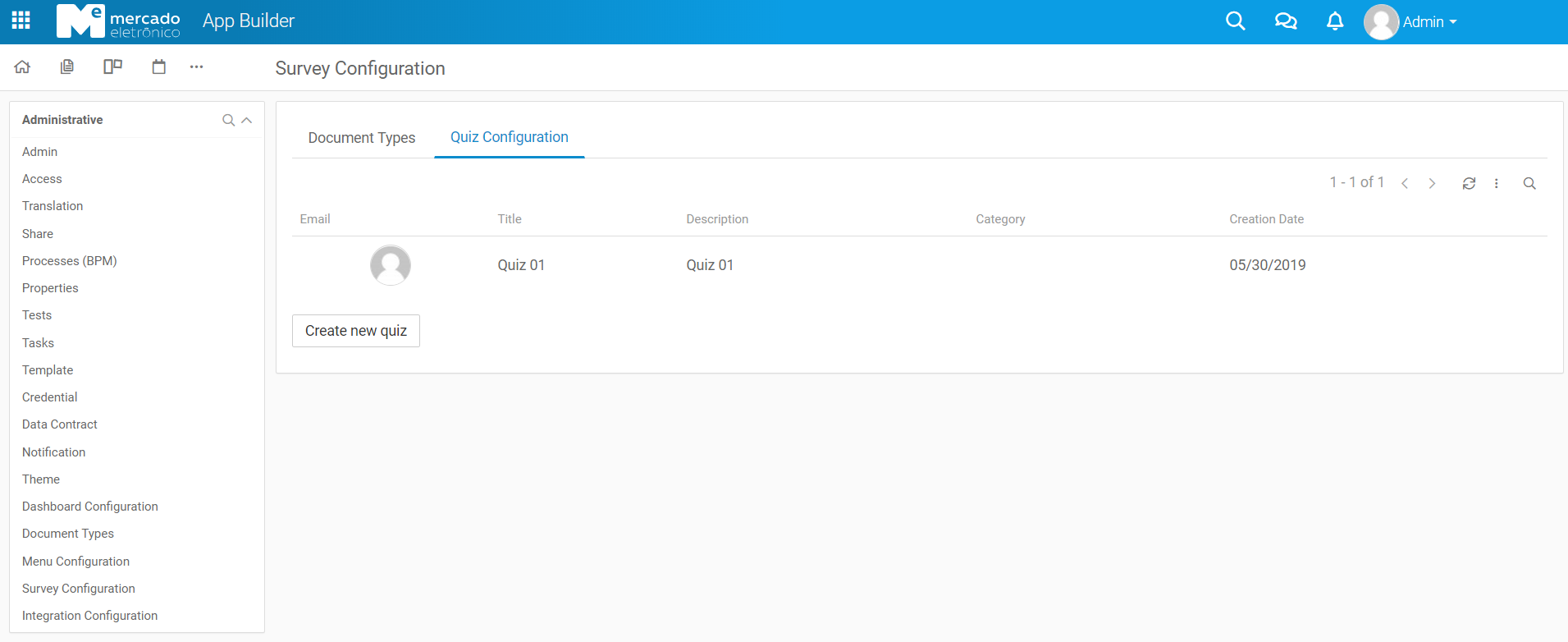
Quiz Field: To create a quiz template, a tab(Quiz Configuration) was created in the survey configuration.
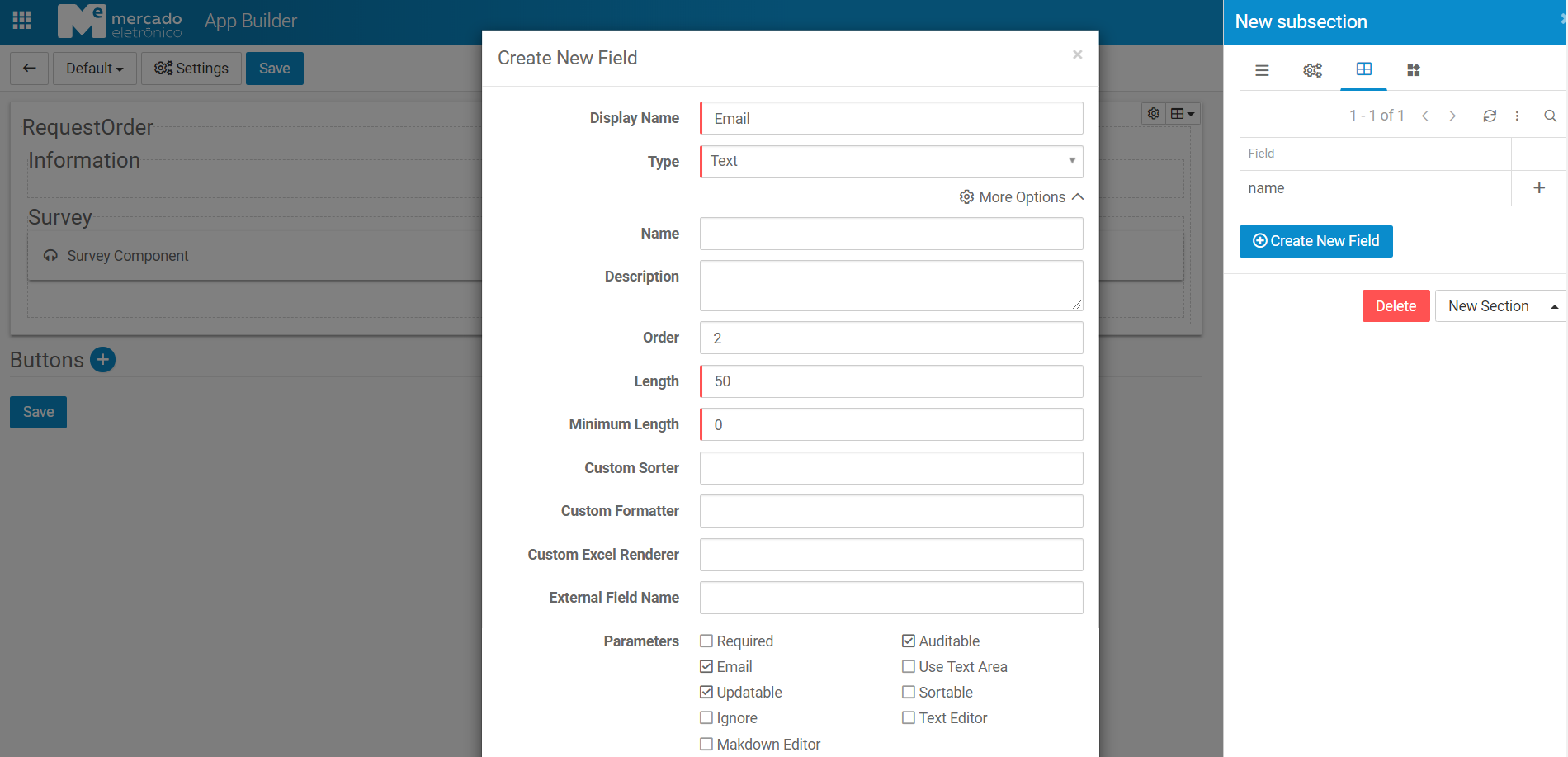
To Field: Represents the field in document of type email
Limit date expression: Is a expression field. see more
To view the widget in the document you will need to add the survey widget as a system macro.
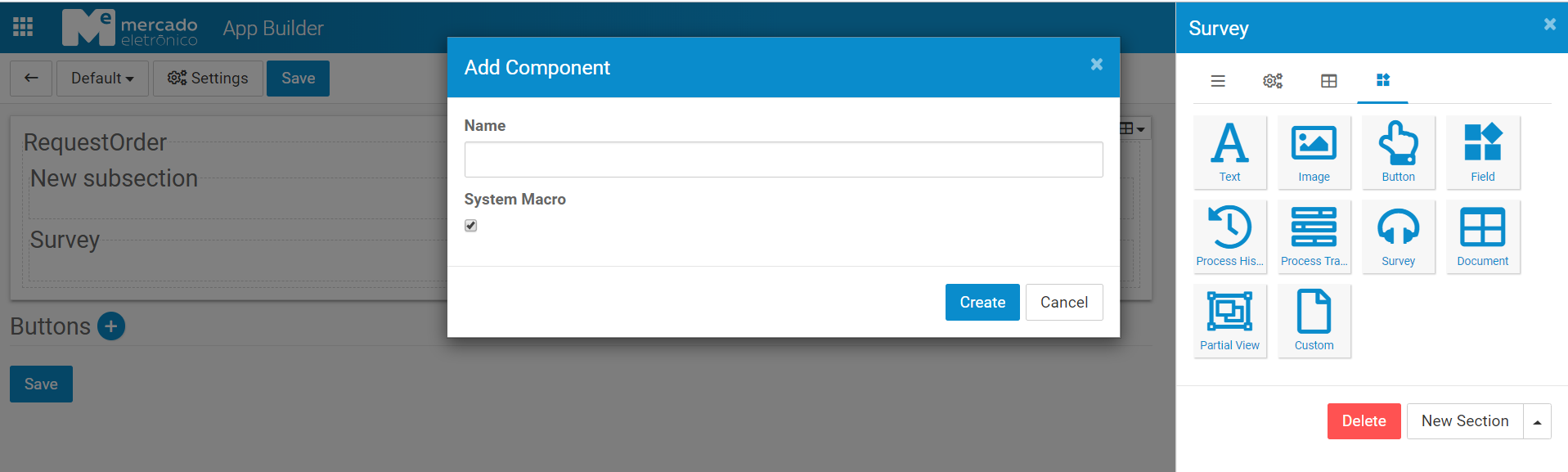
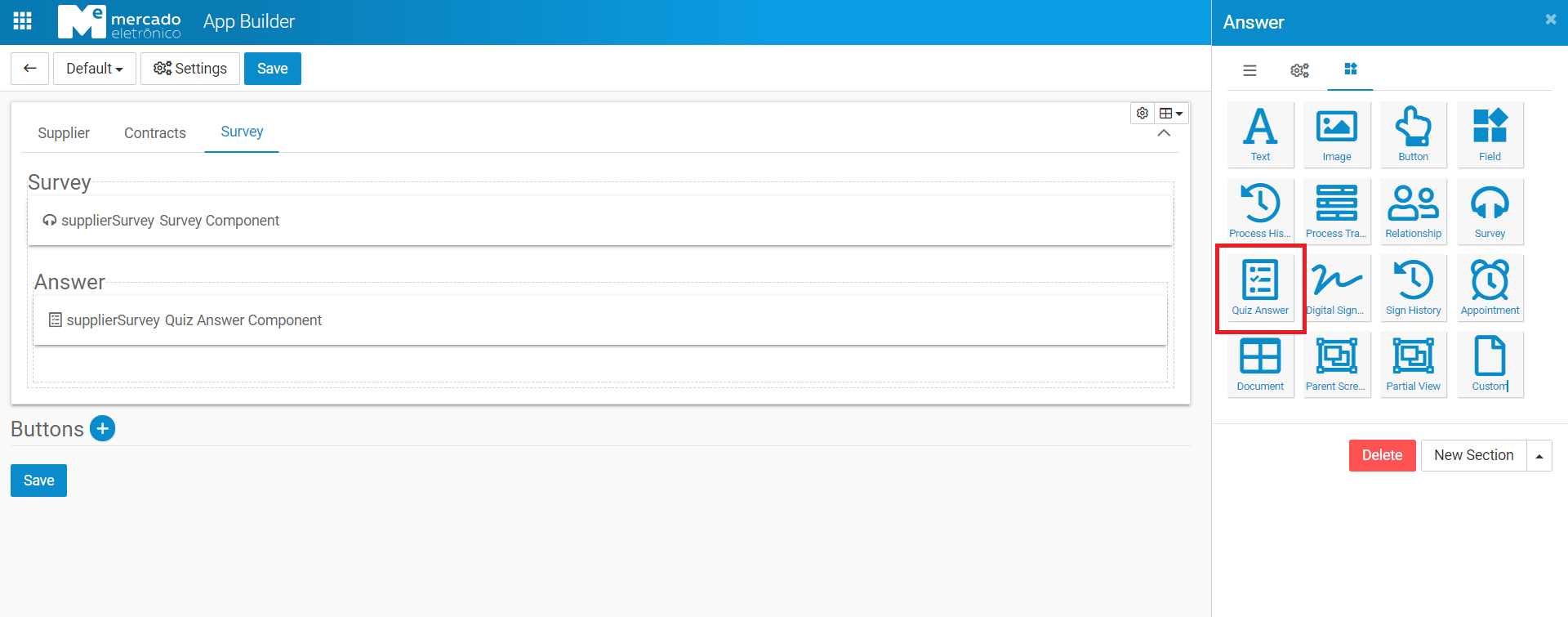
Quiz Answer Widget
The Quiz Answer widget will get the answer of the quiz created by the Survey widget for the current user.
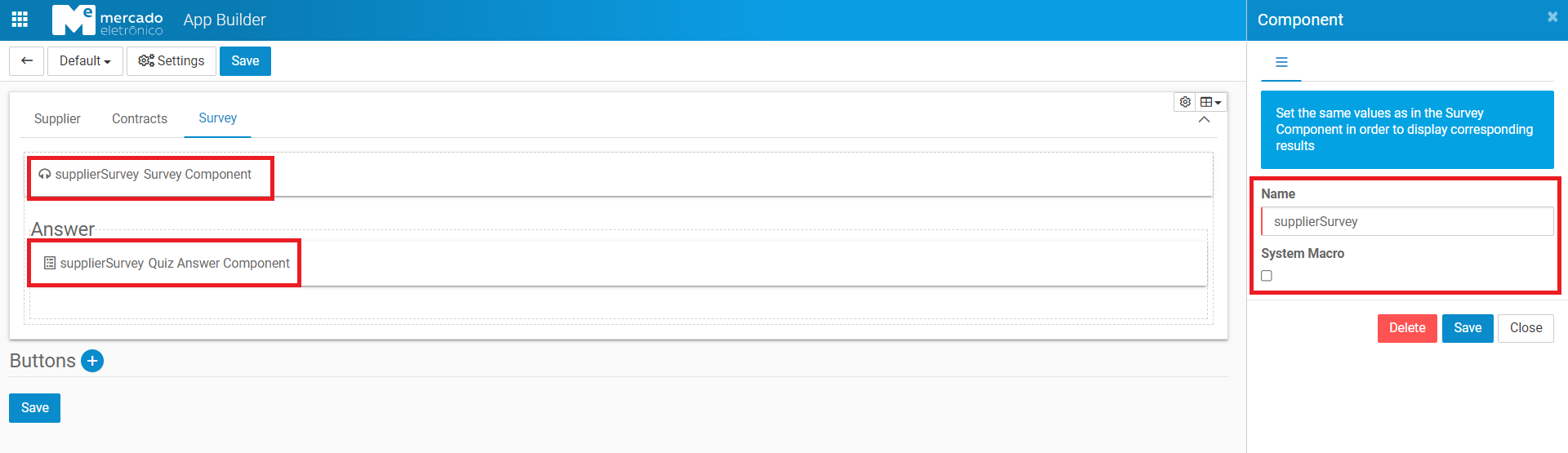
To get the corresponding answer, both Quiz Answer and Survey widget must have the same value filled in the configuration fields.
The following quiz answer data will be displayed in the widget:
Quiz Answer #: QuizAnswer document ID in the Survey app;Created on: QuizAnswer document creation date;Responsible: Quiz recipient;Limit date: Deadline date to answer the quiz;Read: Quiz answer read date;Answer date: Quiz answer date;Answer the Quiz: Link to the quiz answer in the Survey app.